


Microsoft To Do: Lists & Tasks
4.613.55K Reviews
App Specs
- Version
- Varies with Device
- Updated On
- License
- Free
- Downloads
- 10,000,000+
- Developer
- Microsoft Corporation
- Categories
- Productivity
- Platform
- Android, iOS
Screenshots

 Analysis by AppCompare
I usually judge a task app by a simple question: does it help me decide what to do next, or does it become another project to maintain? Microsoft To Do: Lists & Tasks sits firmly on the practical side. It is a free productivity app from Microsoft Corporation for making lists, setting reminders, organizing notes, and sharing tasks. After using it as a daily planner rather than treating it like a full project-management system, I found its main appeal easy to understand: it reduces small decisions without demanding a complicated setup.
That simplicity is also the key to deciding whether it belongs on your phone. If you want a calm place for errands, personal routines, work follow-ups, and shared household jobs, it is a strong candidate. If you need detailed dependencies, time tracking, visual project boards, or a powerful database, you may eventually outgrow it. My experience is that the app works best when I give it a clear job: capture commitments, make today visible, and stop relying on memory.
How I Decide Whether a Task App Is Worth Keeping
Before moving tasks from paper notes or another service, I look at four things: how quickly I can capture an idea, how easily I can find the important items, whether reminders feel useful rather than noisy, and how much maintenance the system requires. Microsoft To Do performs well on the first three when the lists stay focused. It lets me create separate areas for different parts of life, add notes to a task, set a reminder, and turn a vague intention into a visible action.
The most important choice is not a button inside the app; it is the way I name and group lists. A list called “Work” can become an unhelpful bucket. More specific lists such as “Calls to make,” “Weekly shopping,” or “Apartment repairs” give each task a natural home. I can then use the daily view to pull attention toward what matters now instead of scanning every commitment at once.
I also pay attention to the difference between a task and a note. A task should describe something I can finish, such as “send the revised document.” A note can hold the address, questions to ask, or details I do not want to search for elsewhere. This small distinction keeps the list actionable. When I put an entire project into one task, the app cannot magically make that project manageable; I need to break it into steps myself.
For a first setup, I would avoid creating a list for every possible topic. I start with a few areas and use them for a week. If a list repeatedly becomes cluttered, that is a sign it needs a narrower purpose. This approach is particularly useful for people who have tried task apps before and abandoned them after building an elaborate structure they did not want to maintain.
The daily view is the app’s most useful habit
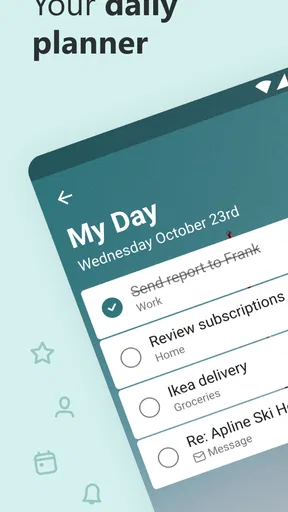
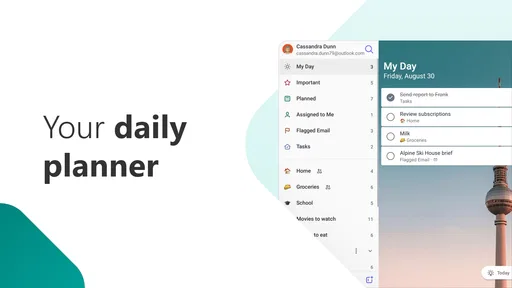
The daily planning area is where the app feels more helpful than a collection of static checkboxes. I can choose tasks for the day, see them together, and move unfinished work forward instead of pretending it disappeared. I like this because it separates the complete inventory of things I may need to do from the smaller set I am actually willing to focus on today.
Worth Reading Before You Choose

EA SPORTS FC Mobile 26 Is a Bigger Football Game, but It Takes Time

Flipboard Shows What News Apps Must Do Beyond the Feed

Switching to Android Auto Means Rethinking Your Driving Routine

Google Calendar Makes a Crowded Week Easier to Manage

Ludo King Makes the Most of the Minutes Between Plans

Baby Panda World Brings Quick Play to Modern Phones, but Its Game Library Feels Busy
A realistic example is a busy Thursday. I might have a work list containing several follow-ups, a personal list with an appointment to arrange, and a shopping list for the evening. Rather than opening each list repeatedly, I select the few actions that matter for Thursday. In the morning, that gives me a manageable starting point. At the end of the day, I can review what remains and make a deliberate choice about tomorrow.
This workflow also exposes an uncomfortable but valuable truth: if the same task keeps being postponed, the problem may be the task itself. “Sort out finances” is too broad. “Download the latest bank statement” is a better next action. Microsoft To Do does not replace that judgment, but it makes vague planning easier to spot because the unfinished item remains visible.
Reminders work best when they protect a deadline
I would not set reminders for everything. Too many alerts turn a useful planner into background noise, especially when every minor intention is treated as urgent. I reserve reminders for tasks tied to a time, a place in my routine, or a consequence. Paying a bill, preparing something before an appointment, and contacting someone during working hours are sensible examples.
The practical tip is to write the task so the reminder makes sense without extra thought. “Prepare meeting” is less useful than “collect figures for Friday meeting.” When the notification appears, I should know what action it is asking for. Notes can hold supporting information, but the task title should still carry the essential instruction.
There is a trade-off here. A reminder can rescue an important commitment, but it cannot prioritize a crowded day for me. If I schedule too many items at the same time, I still have to decide what gets attention first. I see the app as a prompt system, not an automatic personal assistant.
Shared lists are practical for small groups
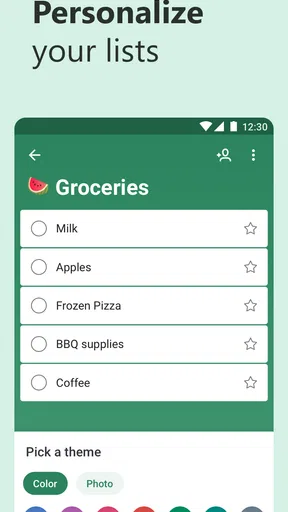
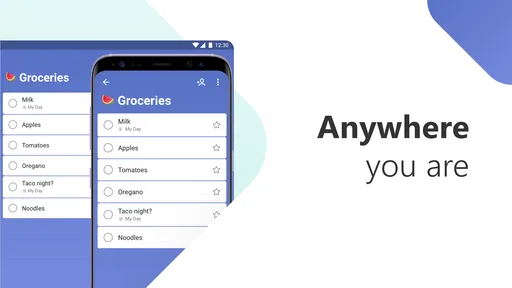
Sharing is one of the features that makes this more than a private checklist. A household can keep groceries, chores, or travel preparations in a common list. A small group can use a shared set of follow-ups when everyone needs to see the same basic status. The benefit is not sophisticated collaboration; it is avoiding scattered messages such as “did anyone buy this?”
I would keep shared lists narrow. A grocery list is easy to understand because every item has a clear purpose. A broad family list containing appointments, repairs, ideas, and personal reminders can become confusing because not every task belongs to everyone. For shared use, I prefer one list per activity and clear wording that does not depend on private context.
It is also worth agreeing on a simple rule before sharing: completed items should be checked off promptly, and uncertain items should be left active rather than silently removed. That habit prevents the list from becoming a record nobody trusts. The app supplies the shared space, but the group still needs a common way of using it.
Notes add context without turning every task into a document
I find notes most valuable when a task needs a small amount of supporting information. For example, a reminder to call a service provider can include the account reference, questions, and the preferred outcome. A shopping task can include a brand preference or a size. This keeps the action and its context together, which is faster than keeping a separate note open while working through the list.
There is a limit. If a task needs a long brief, multiple files, detailed discussion, or a history of decisions, I would move that material to a dedicated document or collaboration tool and leave a concise pointer in the task. Treating the notes area as a complete project workspace makes the list harder to scan. The strongest use is lightweight context, not a replacement for every other productivity tool.
What the app does especially well
The biggest strength is the low mental overhead. I can create a list, add a task, attach a reminder, and return to my day without designing a system first. That makes it suitable for people who want structure but dislike the feeling that organizing work has become work itself.
Its Microsoft identity may also make the transition easier for someone already comfortable with Microsoft’s wider ecosystem, although I would not choose it solely because of the developer’s name. The important question is whether its list-and-task approach matches the way I think. If I naturally organize life through straightforward actions, the fit is good.
The app has also earned a broad audience: it has an average rating of 4.6 from around 479 thousand ratings, with over 10 million installs. Those figures suggest that the basic model is accessible to many people, but they should not decide the choice for you. A popular task app can still feel wrong if you need a visual workflow or a highly specialized planning method.
Another strength is the free entry point. I can test the complete habit of capturing, reviewing, reminding, and completing tasks without first committing money. That matters because the real cost of a task app is usually attention, not the download. If I stop opening it after a week, a paid feature set would not solve the underlying problem.
Where another category may fit better
I would look beyond Microsoft To Do when a project has many relationships between tasks. For example, a renovation may involve waiting for one job before beginning another, tracking materials, assigning responsibilities, and monitoring several stages. A simple list can record those actions, but a project-management tool with boards, timelines, or dependencies may make the structure easier to understand.
I would also consider a calendar-first tool when the main challenge is time allocation rather than remembering actions. “Write report” may belong on a task list, but if the real issue is finding a two-hour block between fixed appointments, a calendar gives a clearer answer. I often use a task list and a calendar for different questions: what needs doing, and when can I realistically do it?
People who think visually may prefer a board-based alternative. Moving cards between stages can be more natural for creative production, sales pipelines, or content workflows. Microsoft To Do can hold the individual actions, but it is not the best representation of a process where status and flow are the central information.
At the other extreme, someone who only needs a few temporary reminders may find the app more structure than necessary. A phone alarm or a short handwritten note can be faster for one immediate errand. I would choose To Do when I want a reusable system, not merely a single prompt.
It is also not the ideal choice for a team that needs deep discussion around every task. Shared lists are useful for clear assignments, but a complex team workflow may require comments, documents, approvals, and detailed history in one place. In that situation, I would keep personal follow-ups here only if doing so genuinely reduces confusion.
The real cost of switching
Moving to a new task app is rarely difficult because of installation. The difficult part is deciding which old commitments deserve a place in the new system. I would not copy every abandoned item. I would review the old list, delete stale intentions, rewrite vague projects as next actions, and bring across only commitments that still matter.
A sensible migration starts with one active list and one daily review. After several days, I would add a second area only if the first one feels useful. This avoids the common mistake of importing years of clutter and then blaming the new app for being overwhelming. The app can become a clean starting point, but only if I am willing to clean the source material first.
There is also a habit cost. If I have been using a calendar, paper notebook, or another service, I need to decide where new tasks will go. Splitting capture across several places is more damaging than choosing a less feature-rich app and using it consistently. For me, the best transition rule is simple: every new commitment goes into one trusted inbox or list, then gets organized during a short review.
When sharing lists, switching has a social cost as well. Family members or colleagues need to know which list to open and what checking an item off means. I would introduce the system with one concrete use case, such as groceries, rather than asking everyone to adopt a complete productivity philosophy. Small success builds trust faster than a long explanation.
Who should download it, and who should skip it?
I recommend it to students managing assignments and errands, professionals who need a lightweight follow-up system, households coordinating repeat chores, and anyone who wants reminders without building a complicated workspace. It is especially appealing if you want to begin for free, prefer text-based lists, and are willing to decide your own priorities.
I would skip it as a primary system if your work depends on detailed project dependencies, extensive team communication, visual status tracking, or time-blocking as the main planning method. You can still use it for personal actions alongside another tool, but forcing every kind of work into a simple list usually creates friction.
The age rating is Everyone, and the app runs on Android from version 8.0 onward. That makes it approachable for a wide range of everyday users, including someone setting up a first digital task list on an older compatible device. The important practical question remains whether the phone and account setup you already use make regular access convenient.
My recommendation after using it as a daily planner
Microsoft To Do is not exciting in the way a large project suite can be, and that is exactly why I would recommend it to the right person. It gives me a place to turn obligations into actions, choose a realistic daily set, add context, and share straightforward lists. The experience is strongest when I keep each list purposeful and resist the temptation to record every idea as an urgent task.
My clear recommendation is to try Microsoft To Do if your main problem is remembering and organizing ordinary commitments. Give it a focused setup, use reminders selectively, and review unfinished tasks instead of endlessly carrying them forward. If your work quickly demands visual workflows, detailed dependencies, or collaborative project records, choose a more specialized alternative rather than expecting a basic task list to become one.
Developed by Microsoft Corporation and released on April 19, 2017, it remains a sensible free starting point for personal productivity. Its store category is productivity, its content rating is Everyone, and its store name is Microsoft To Do. I would not call it the universal answer, but for a clean, approachable system of lists, reminders, notes, and shared tasks, it is one I would comfortably suggest to a friend.
Pros
- Clean
- intuitive interface makes daily planning easy.
- Tasks sync reliably across Android
- iOS
- Windows
- and the web.
- Shared lists support simple collaboration with family or coworkers.
- My Day helps focus on a manageable set of priorities.
- Recurring tasks and reminders handle routine responsibilities well.
Cons
- Some advanced project-management features are missing.
- Tagging and filtering options are fairly limited.
- Large task lists can feel cumbersome to organize.
- Certain features depend on a Microsoft account and cloud sync.
- Reminders may be less flexible than those in specialized task apps.
FAQs for Microsoft To Do: Lists & Tasks
What is Microsoft To Do: Lists & Tasks, and what can I use it for?
Microsoft To Do is a task-management app for organizing personal, school, and work responsibilities in one place. After testing its main features, I found it useful for creating separate lists, adding due dates and reminders, setting repeat schedules, and breaking larger tasks into steps. The My Day view also helps prioritize what needs attention without overwhelming the screen with every unfinished task.
Does Microsoft To Do sync across Android, iPhone, and other devices?
Yes, Microsoft To Do is designed to synchronize your lists and tasks across supported devices when you sign in with a Microsoft account. This means you can add a task on an Android phone and later access it from an iPhone, tablet, or computer. Syncing depends on an internet connection and the same account being used, so changes may not appear immediately while offline.
Is Microsoft To Do free to download and use?
Microsoft To Do is generally available as a free app for Android, iOS, and other supported platforms. Core features such as lists, reminders, due dates, recurring tasks, notes, and task steps can be used without a separate subscription. However, some connected Microsoft services or workplace features may depend on the type of Microsoft account you use, so availability can vary between personal and organizational accounts.
Can I share lists and collaborate with other people in Microsoft To Do?
Yes, Microsoft To Do allows you to share selected lists with other people, which can be helpful for groceries, household planning, trips, or small team projects. You can invite collaborators through a sharing link or supported account options, depending on the platform and account settings. It is primarily a straightforward task-list tool, so users needing advanced project management, detailed roles, or extensive reporting may find it limited.
Does Microsoft To Do work offline, and what happens to my tasks without internet access?
Microsoft To Do can be used for many everyday actions while offline, including viewing existing lists and adding or editing tasks on your device. When the connection returns, the app attempts to synchronize those changes with your Microsoft account and other devices. To avoid conflicts, especially when using several devices, it is best to open the app online occasionally and confirm that recent edits have synchronized correctly.


